Service Business Data Backup and Recovery: What Happens When Your CRM Goes Down
When your CRM goes down, you lose access to customer history, job schedules, and invoices. Here is how service businesses protect their data and recover fast.

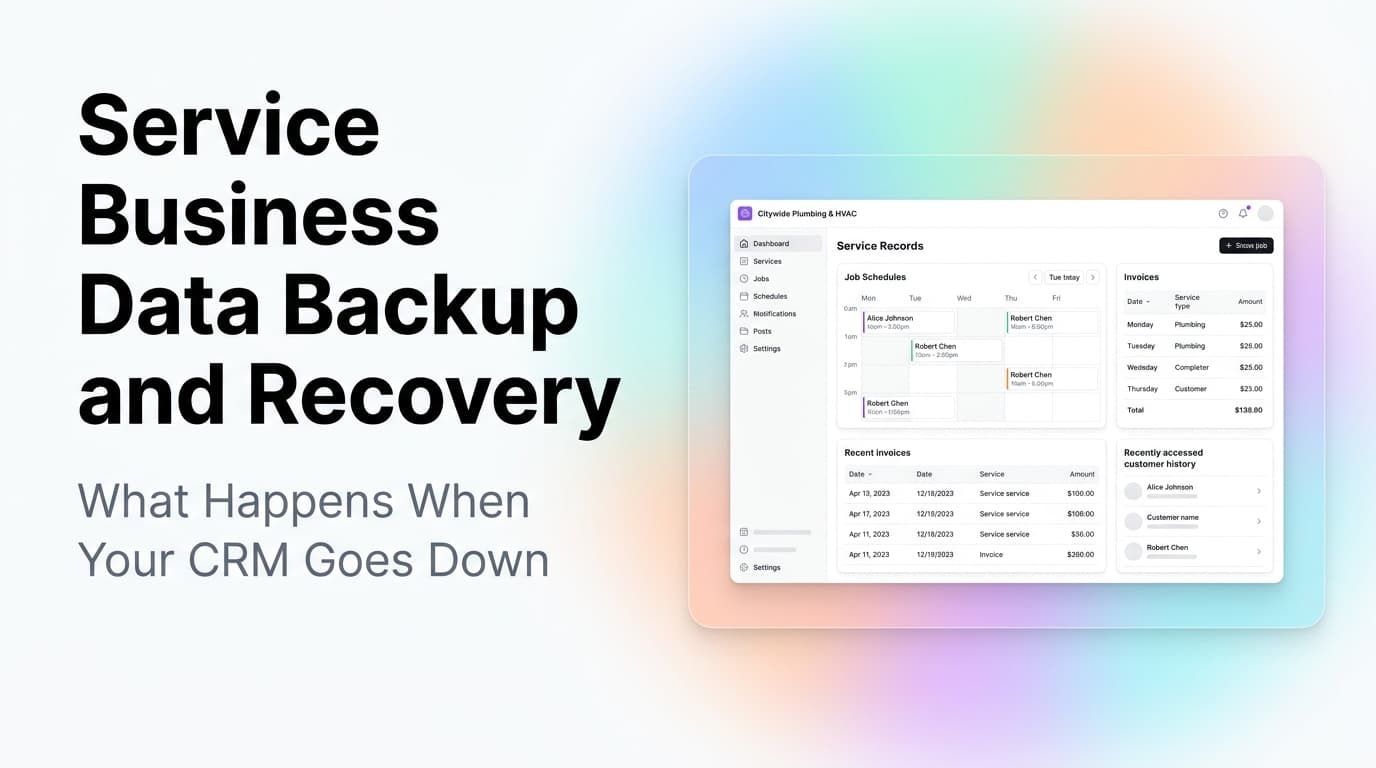
Quick answer: Most service businesses store everything in one CRM or scheduling platform with no backup. If that platform goes down for a day, you lose access to customer contact info, job history, invoices, and tomorrow's schedule. The fix is a three-layer approach: automated daily exports to a secondary system, documented manual recovery steps, and a communication plan for customers. It costs about 2-4 hours to set up and can save you from losing a week of revenue.
The Problem: Your Entire Business Lives in One Place
Walk into any HVAC, plumbing, electrical, or landscaping company and you will find the same setup. Customer names, phone numbers, job addresses, service history, equipment records, invoices, payment status, and tomorrow's schedule all live inside one CRM or scheduling platform.
That platform is a SaaS product. It runs on servers you do not control. And like every piece of software, it can go down.
What actually happens when it does:
- You cannot look up a customer's address for today's service call
- Your techs cannot see what equipment was installed last visit
- You cannot send an invoice because the payment portal is down
- You cannot check if a customer paid their last bill
- You cannot pull tomorrow's route because the schedule is locked
This is not a hypothetical. Major CRM and scheduling platforms have experienced multi-hour outages. Some have gone down for a full business day. In 2024, a popular field service platform had a 12-hour outage that left thousands of contractors unable to dispatch or invoice.
For a service business running 5-10 jobs a day, a full-day outage means 5-10 missed or delayed jobs, delayed payments, frustrated customers, and a scramble to reconstruct data from memory and paper notes.
What Data Actually Matters
Not all data is equally critical. Here is the priority order for protection:
| Priority | Data Type | Why It Matters | Recovery Time Target |
|---|---|---|---|
| 1 | Customer contact info (name, phone, address) | You cannot dispatch without it | Under 1 hour |
| 2 | Today and tomorrow's schedule | Missed appointments = lost revenue | Under 1 hour |
| 3 | Open invoices and payment status | You cannot collect money without it | Under 4 hours |
| 4 | Service history and equipment records | Techs need context for repairs | Under 24 hours |
| 5 | Contracts, agreements, warranty info | Legal and liability protection | Under 48 hours |
The first three are time-sensitive. If you lose access to those for more than a few hours, you are losing money. The last two are important but can wait a day.
The Three-Layer Backup Strategy
Layer 1: Automated Daily Exports
Set up an automated export from your CRM or scheduling platform to a secondary location. This should run daily, ideally overnight.
What to export:
- Full customer list with contact info
- All active jobs and their status
- Open invoices with amounts and due dates
- Today and tomorrow's schedule
Where to export:
- A Google Sheet or Excel file stored in cloud storage (Google Drive, OneDrive, Dropbox)
- A simple database like Airtable or Notion
- A local CSV file on a company computer (least ideal, but better than nothing)
How to automate it:
Most CRMs and scheduling platforms have one of these options:
- Native CSV export (manual, but you can set a calendar reminder)
- API access (a developer can write a script that pulls data daily)
- Zapier or Make integration (connect your CRM to a Google Sheet and schedule it to run daily)
- Built-in backup feature (some platforms offer this, check your settings)
What this costs: If you use Zapier or Make, the automation costs $20-30 per month for the connector. If you use a native API, it is a one-time setup cost of a few hundred dollars.
Layer 2: Documented Recovery Steps
An export file is useless if nobody knows how to use it. You need a written plan that any team member can follow.
Your recovery document should include:
- Where the backup file lives (exact link or folder path)
- Who has access to it
- How to open it and find a customer's info
- How to reconstruct a schedule from the data
- How to create manual invoices if the payment system is down
- Who to call at the CRM platform for support
- What to tell customers when they call
Keep this document:
- Printed and posted in the office
- Saved as a PDF on every company phone
- Stored in a shared cloud folder
Real example: A plumbing company in Rome, GA had their scheduling platform go down at 7 AM on a Monday. Their recovery document told the office manager to open a Google Sheet, find each tech's assigned jobs, and text the addresses to the techs. They lost 30 minutes instead of 3 hours.
Layer 3: Customer Communication Plan
When your system goes down, customers will call. They want to know if their appointment is still happening. Have a script ready.
What to say:
- "We are experiencing a temporary system issue. Your appointment is still scheduled. We will confirm by text within 30 minutes."
- "We have your information. We will call you back as soon as our system is back up."
What not to say:
- "We lost all our data." (This sounds permanent and scares customers)
- "I have no idea what's happening." (This erodes trust)
- "Can you tell me your address again?" (This confirms you are disorganized)
Automate the communication: Set up a broadcast SMS or email list in a separate tool (not your CRM) so you can message all affected customers at once. Tools like TextMagic, SimpleTexting, or even a group text thread can serve as your emergency communication channel.
What AnovaGrowth Recommends
We have helped service businesses set up backup systems as part of their CRM integration projects. Here is what we see work consistently:
For most service businesses (1-10 techs): A Zapier connection that exports your CRM data to a Google Sheet every night. Total setup time: 2 hours. Monthly cost: $20-30 for the Zapier subscription. Recovery time: 15 minutes to find any customer's info.
For growing businesses (10-30 techs): A custom script that exports to a simple database or cloud storage. This handles larger data volumes and can include job history and equipment records. Setup time: 4-8 hours with a developer. Monthly cost: $0-50 for storage. Recovery time: Under 5 minutes.
For multi-location businesses (30+ techs): A redundant system with real-time replication to a secondary platform. This is more expensive but ensures near-zero data loss. Setup time: 1-2 weeks. Monthly cost: $200-500. Recovery time: Under 1 minute.
The most common mistake we see is businesses that set up a backup once and never test it. A backup that has not been tested in six months is not a backup. It is a hope.
How to Test Your Backup
Set a recurring calendar reminder to test your backup every 90 days.
The test:
- Pretend your CRM is down. Do not open it.
- Open your backup file.
- Find a specific customer's phone number and service history.
- Find today's schedule.
- Find an open invoice.
- Time how long each step takes.
If any step takes more than 5 minutes, your backup system needs improvement.
What to fix:
- If you cannot find the file, move it to a more obvious location
- If the data is outdated, check that your automation is still running
- If the data is incomplete, add the missing fields to your export
- If nobody knows where the file is, print the recovery document and post it
What About Cloud Platform Reliability?
Some business owners assume that because their CRM is a major SaaS platform, it will never go down. That is not how cloud computing works.
Every major platform publishes an uptime SLA. Most promise 99.9% uptime. That sounds great until you do the math:
- 99.9% uptime = 8.7 hours of downtime per year
- 99.99% uptime = 52 minutes of downtime per year
- 99.0% uptime = 87 hours of downtime per year
Even at 99.9%, you are looking at nearly a full business day of downtime per year. And SLAs are promises, not guarantees. When a platform goes down, you do not get paid for the outage. You get a credit on next month's bill.
The real risk is not the platform going down. It is you not having a plan for when it does.
Related Questions
- How do I export data from my CRM automatically without coding?
- What is the best cloud storage for business backup files?
- How often should I test my data recovery plan?
- Should I keep a local copy of my CRM data or is cloud-only enough?
- What happens to my data if I stop paying my CRM subscription?
- How do I handle data privacy when storing customer info in a backup file?
Key Takeaways
- Your CRM will go down at some point. Plan for it now, not during the outage.
- The three-layer approach (automated export, recovery document, communication plan) covers the real risks.
- Test your backup every 90 days. An untested backup is not a backup.
- The setup cost is small compared to the cost of a single day of lost operations.
- Start with the simplest option: a daily export to a Google Sheet. You can upgrade later.
Need help setting up automated data backups for your service business? Contact us to discuss your CRM setup and we will build a recovery plan that fits your operation. Also check out our guide on CRM data migration for service businesses and CRM cleanup best practices for keeping your data organized before you back it up.
Related articles
Customer Health Scoring for Service Businesses: Spot At-Risk Customers 60 Days Before They Leave
Service businesses that score customer health on five signals catch 70-80% of churn 60-90 days before it happens. Here is the model, the math, and the workflow.
Read the article: Customer Health Scoring for Service Businesses: Spot At-Risk Customers 60 Days Before They Leave
Automated Reporting for Service Businesses: Stop Building Manual Reports, Start Making Decisions
Service businesses spend 8-12 hours per month on manual reports. Automated reporting cuts that to zero and surfaces insights you would miss.
Read the article: Automated Reporting for Service Businesses: Stop Building Manual Reports, Start Making Decisions
CRM Dashboard Metrics That Matter for Service Businesses
Most service businesses track the wrong CRM metrics. Here is what to measure instead to know which jobs are profitable and which leads convert.
Read the article: CRM Dashboard Metrics That Matter for Service Businesses
