CRM Data Migration for Service Businesses: How to Switch Without Losing Your Data
Switching CRMs is risky. Here is how service businesses migrate customer data, job history, and pipeline records without losing data or disrupting operations.

Quick Answer
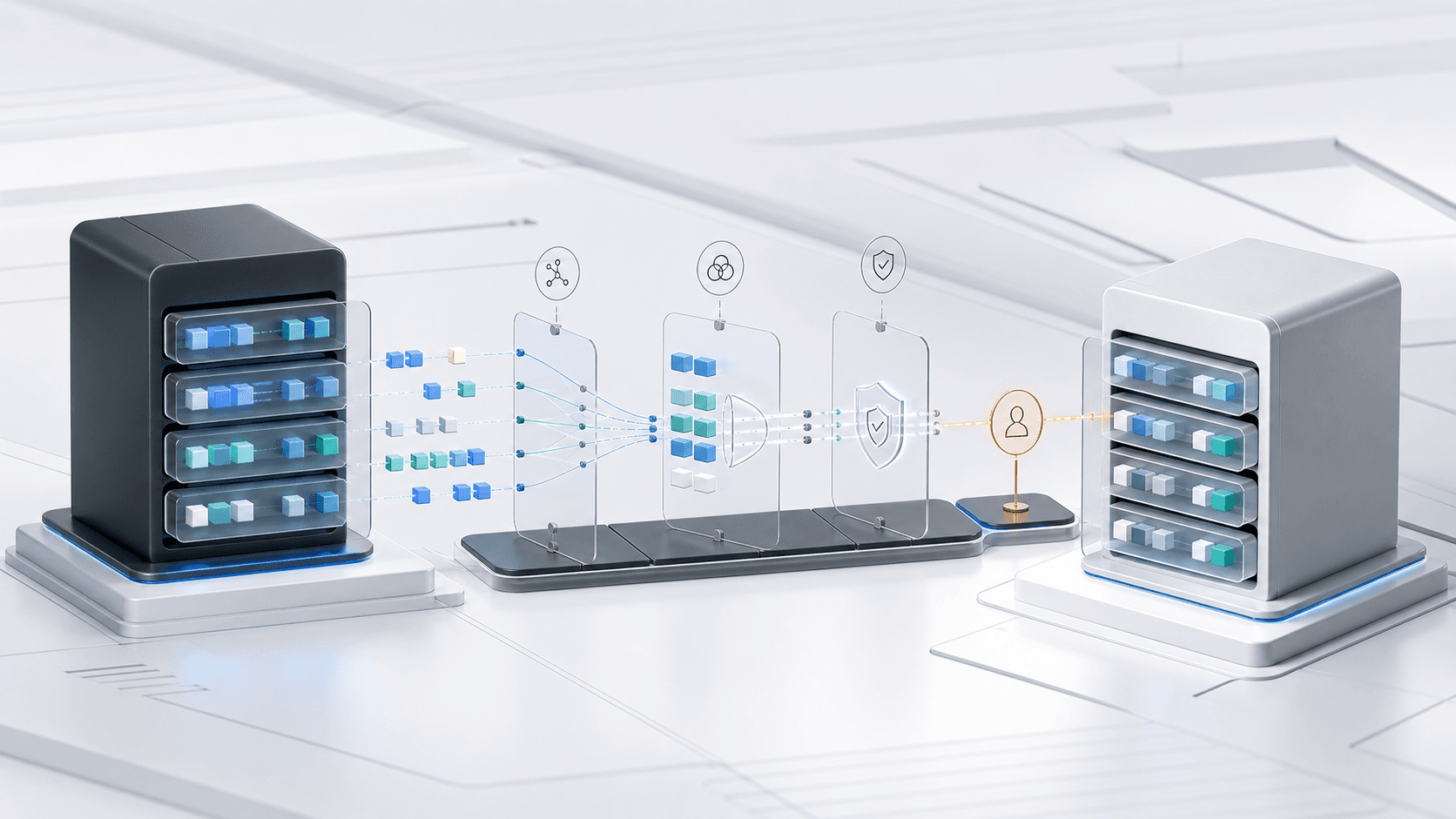
CRM data migration is the process of moving customer records, job history, invoices, and pipeline data from one CRM to another. For service businesses, the risk is losing years of customer history, past job notes, and active pipeline deals. A successful migration requires auditing your data first, mapping fields between old and new systems, cleaning duplicates before the move, running test imports, and keeping the old CRM accessible for at least 30 days after switching. Most service businesses can complete a full migration in 2 to 4 weeks with proper planning.
The Real Cost of a Bad CRM Migration
You have been thinking about switching CRMs for months. Maybe your current one is too expensive, missing features you need, or just painful to use every day. But the thought of moving everything over keeps stopping you.
That hesitation is costing you more than you think.
Every week you stay on a CRM that does not fit your business, you lose time, miss follow-ups, and work around limitations instead of through them. But the fear is real too. A botched migration can lose customer contact info, delete years of job notes, or break your pipeline right when deals are closing.
We have helped service businesses migrate from Housecall Pro, Jobber, ServiceTitan, Salesforce, Zoho, and a dozen other platforms. The ones that succeed follow the same process. The ones that fail skip steps.
Here is the process that works.
Step 1: Audit What You Actually Have
Before you export anything, you need to know what is in your current CRM. Most service businesses have no idea how much junk data they are carrying.
What to look for:
| Data Type | What to Check | What to Do |
|---|---|---|
| Customer records | Duplicates, missing phone/email, old addresses | Deduplicate and fill gaps before export |
| Job history | Incomplete notes, missing dates, orphan records | Clean or archive anything older than 3 years |
| Pipeline deals | Stale opportunities, lost deals still marked open | Close or remove anything older than 6 months |
| Invoices/payments | Partial records, mismatched totals | Reconcile with your accounting software first |
| Custom fields | Fields with no data, fields used by no one | Remove before migration, add only what you need |
Real example: One HVAC company we worked with had 1,400 customer records in their old CRM. After auditing, 300 were duplicates, 200 had no phone number, and 150 were from jobs completed before 2019. They cleaned it down to 750 usable records before the migration. The import took two hours instead of two days.
AnovaGrowth insight: We always run a data audit before touching the export button. The most common failure we see is businesses exporting everything, including the garbage, then trying to sort it out inside the new CRM. That approach doubles the migration time and guarantees you will miss something.
Step 2: Map Your Fields Before You Export
Every CRM stores data differently. Your old system might call it "Customer Name" while the new one calls it "Account Name." "Job Type" in one system might be "Service Category" in another.
Field mapping is where most migrations go wrong. You export a CSV, import it, and half the fields land in the wrong places or nowhere at all.
The mapping checklist:
- Customer name, phone, email, address (these are usually straightforward)
- Job history: date, type, status, assigned tech, notes
- Pipeline stages: match each stage name to the closest equivalent in the new system
- Custom fields: these almost never map 1:1. Plan for manual re-entry or a custom import script
- Tags and categories: check if the new system supports the same tagging structure
What to do with fields that do not map: If your old CRM has a field the new one does not support, you have three options. Add a custom field in the new system (most CRMs allow this). Append the data to the notes field as structured text. Or leave it behind if nobody has used it in the last year.
AnovaGrowth insight: We build a field mapping spreadsheet for every migration. It is a simple table with three columns: Old Field Name, New Field Name, and Notes. This single document prevents 90% of import errors. Do not skip it.
Step 3: Clean Your Data Before the Move
This is the step everyone wants to skip. Do not skip it.
Cleaning data inside your old CRM is easier than cleaning it inside the new one. You know the old system. You know where the junk lives. Once the data moves, you lose that context.
What to clean:
- Duplicate contacts. Merge records with the same phone number or email. Most CRMs have a built-in deduplication tool.
- Incomplete records. If a customer record has no phone, no email, and no address, it is not a lead. It is a placeholder. Delete it or mark it inactive.
- Orphan jobs. Job records that are not linked to any customer. These happen when a customer record gets deleted but the jobs stay. Reattach or archive.
- Stale pipeline deals. Any deal older than 6 months with no activity should be closed or moved to a "Stale" stage. Do not bring dead deals into your new pipeline.
- Inconsistent formatting. Phone numbers stored as (555) 123-4567 in some records and 555.123.4567 in others. Standardize before the export.
Proof: A plumbing company we worked with had 12 different ways of storing service addresses. Some had "St." some had "Street" some had "St" with no period. After standardizing, their dispatch routing accuracy improved by 18% because the new CRM could actually geocode the addresses correctly.
Step 4: Run a Test Import
Never do your first import on production data.
Export a small subset of your data. Maybe 20 to 50 customer records with their associated job history. Import those into the new CRM. Check every field. Check that linked records stayed linked. Check that dates are correct. Check that custom fields populated properly.
What to verify in the test:
- All customer contact fields populated correctly
- Job history attached to the right customer records
- Pipeline deals in the correct stages
- Custom fields showing the right data
- Date formats match (US vs international can cause issues)
- Phone numbers formatted consistently
- Notes and descriptions not truncated
If the test fails: Fix the issue in your export or mapping, then run another test. Repeat until the test import is clean. This usually takes 2 to 3 iterations.
AnovaGrowth insight: We always run at least three test imports before the full migration. The first one always has problems. The second one usually has one or two. The third one is clean. If your third test import still has errors, your data or mapping needs more work before you go live.
Step 5: Execute the Full Migration
Once your test imports are clean, you are ready for the real move.
Best practices for the full import:
- Schedule it during low-traffic hours. Sunday morning or late evening. Do not migrate while your team is actively using the system.
- Export a final backup from the old CRM. Keep this file somewhere safe. You may need it.
- Run the import in batches if the system allows it. 500 records at a time is safer than 5,000.
- Do not delete the old CRM account. Keep it active and accessible for at least 30 days. You will discover things you missed.
- Notify your team. Let them know the new system is live, what changed, and where to find the old data if they need it.
What to do if the import fails mid-way: Most modern CRMs handle partial failures gracefully. Records that already imported stay. You fix the error, remove the successfully imported records from your export file, and re-import the rest. Do not re-import everything.
Step 6: Validate and Clean Up
The migration is not done when the import finishes. It is done when your team has been using the new system for two weeks without issues.
Post-migration checklist:
- Spot-check 50 random customer records for accuracy
- Verify that all active pipeline deals are in the right stages
- Check that automated workflows (email follow-ups, status updates) are firing correctly
- Confirm that integrations with your scheduling, invoicing, and accounting tools still work
- Ask each team member to report any data they cannot find
- After 30 days, deactivate the old CRM (do not delete it yet)
Common post-migration issues:
| Issue | Why It Happens | Fix |
|---|---|---|
| Missing job notes | Notes field was too long for the new system | Check character limits, split into multiple fields |
| Broken email templates | Template variables use different syntax | Rebuild templates in the new system |
| Wrong pipeline stages | Stage names did not map cleanly | Manually move deals to correct stages |
| Duplicate records created | Import ran twice | Use the CRM's merge tool to combine duplicates |
When to Call in Help
Some migrations are straightforward. If you are moving from one modern CRM to another with good import tools, you can probably handle it yourself with the steps above.
But some situations call for professional help:
- You have more than 5,000 customer records
- Your data spans multiple systems (CRM + accounting + scheduling + marketing)
- You use heavy custom fields or complex automation rules
- You cannot afford any downtime in your sales pipeline
- Your team is already overwhelmed and cannot take on a migration project
What professional migration support looks like: A consultant or agency handles the data audit, field mapping, export formatting, test imports, and validation. Your team only needs to learn the new system and confirm the data looks right. Most migrations take 1 to 3 weeks with dedicated support.
Key Takeaways
- Audit first. Know what data you have before you try to move it. Clean out the junk while you are still in the old system.
- Map your fields. A field mapping spreadsheet prevents 90% of import errors. Do not skip this step.
- Clean before you move. Deduplicate, standardize, and remove stale records while you still have the context of the old system.
- Test at least three times. Small test imports catch problems before they become disasters.
- Keep the old CRM for 30 days. You will find things you missed. Having access to the old system saves hours of frustration.
- Know when to get help. Large migrations, complex data, or tight timelines are worth paying for.
Related Questions
- How do I export data from Housecall Pro or Jobber for a CRM migration?
- What CRM is best for a service business with 10 to 50 employees?
- How much does a professional CRM migration cost?
- Can I migrate my CRM data without losing my automated workflows?
- What is the fastest way to train my team on a new CRM after migration?
- Should I migrate all my historical data or just active customers?
Ready to switch CRMs without the headache? Contact us to discuss your migration project. We handle the data audit, field mapping, and validation so your team can focus on serving customers.
Related reading: How to Choose the Right CRM for Your Service Business | CRM Integration for Service Businesses: Connecting Your Tools Into One Lead-to-Cash Flow | CRM Data Cleanup Before AI Automation: What to Fix First
Related articles
How to Choose the Right CRM for Your Service Business
A practical framework for service businesses evaluating CRM options. Compare all-in-one platforms, industry-specific tools, and custom builds.
Read the article: How to Choose the Right CRM for Your Service Business
Custom Analytics Dashboards for Service Businesses: When Off-the-Shelf Tools Fall Short
Off-the-shelf analytics show generic metrics. Custom dashboards connect your CRM, accounting, and scheduling into one view that drives real decisions.
Read the article: Custom Analytics Dashboards for Service Businesses: When Off-the-Shelf Tools Fall Short
Custom Software Maintenance and Support for Service Businesses: The Hidden Costs Most Owners Never See
Custom software for service businesses does not stop costing money after launch. Here is what maintenance actually costs, who pays for it, and how to build a support plan that keeps your system alive.
Read the article: Custom Software Maintenance and Support for Service Businesses: The Hidden Costs Most Owners Never See
