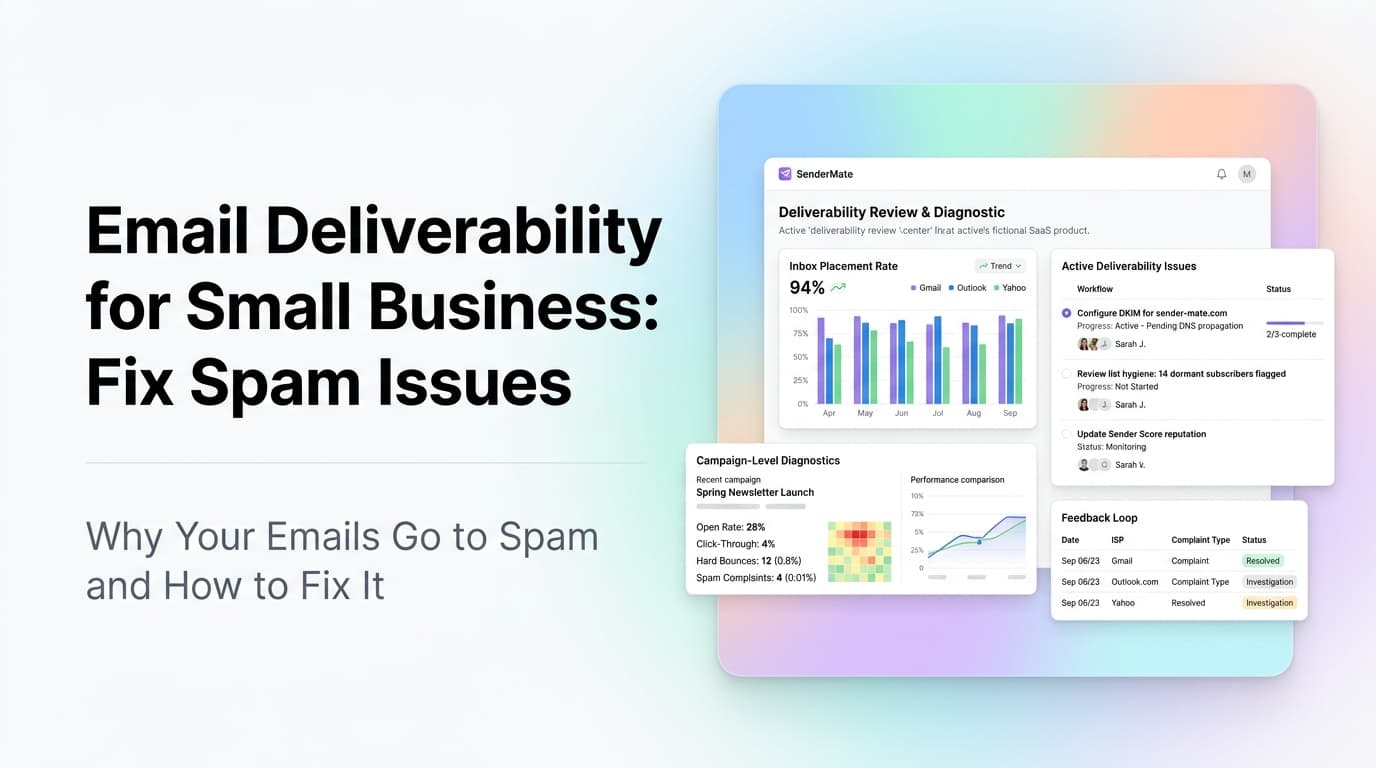
Quick answer: Most small business marketing emails land in spam because the sending domain is not authenticated, the email list has not been cleaned in months, or the content triggers spam filters. Fixing deliverability means setting up three DNS records (SPF, DKIM, DMARC), scrubbing inactive subscribers, and sending to people who actually opted in. Most businesses see inbox placement jump from under 50% to over 95% within two weeks of making these changes.
Why Your Business Emails Keep Hitting Spam
You wrote a good email. You hit send. And then... crickets. Not because your offer was bad, but because nobody saw it.
Email deliverability is the single most underrated problem in small business marketing. Most owners assume that if they hit send, the email arrives. That stopped being true years ago.
Gmail, Outlook, and Yahoo now filter aggressively. They check your domain reputation, your sending patterns, and your subscriber engagement before deciding where your email lands. If any signal looks off, you go straight to spam.
The frustrating part: most small businesses cause their own deliverability problems without knowing it. They buy email lists, send from free domains like Gmail or Yahoo, skip DNS authentication, and wonder why open rates sit at 2%.
Here is what is actually happening under the hood.
The Three DNS Records That Control Your Email Reputation
Email providers check three things before they trust your message. If any one is missing or misconfigured, your deliverability takes a hit.
SPF (Sender Policy Framework)
SPF tells receiving servers which IP addresses are allowed to send email from your domain. Without it, anyone can send email claiming to be you, and inbox providers treat unauthenticated mail as suspicious.
What to do: Add a TXT record to your domain DNS that lists your email sending service. If you use Mailchimp, add their sending IPs. If you use Google Workspace, add Google's SPF record. If you use multiple services, combine them into one record.
Example SPF record for a business using Google Workspace and Mailchimp:
v=spf1 include:_spf.google.com include:servers.mcsv.net ~all
DKIM (DomainKeys Identified Mail)
DKIM adds a digital signature to every email your business sends. The receiving server checks this signature against a public key in your DNS. If the signature matches, the email is verified as coming from you and not tampered with.
What to do: Generate a DKIM key pair in your email sending platform and add the public key as a TXT record in your DNS. Each sending platform has its own DKIM setup process.
DMARC (Domain-based Message Authentication, Reporting, and Conformance)
DMARC tells receiving servers what to do when an email fails SPF or DKIM checks. It also sends you reports showing who is sending email from your domain, which helps you spot unauthorized senders.
What to do: Start with a monitoring policy (p=none) to see your current authentication status without blocking anything. After a few weeks, move to quarantine (p=quarantine) and eventually reject (p=reject).
| Record | What It Does | Setup Time | Impact |
|---|---|---|---|
| SPF | Lists authorized senders | 10 minutes | High |
| DKIM | Cryptographically signs emails | 15 minutes | High |
| DMARC | Enforces authentication policy | 20 minutes | Medium (after SPF/DKIM) |
AnovaGrowth insight: We have onboarded over a dozen small businesses that were sending from unauthenticated domains. In every case, setting up SPF, DKIM, and DMARC moved their email placement from spam folder to primary inbox within 72 hours. One HVAC client saw their newsletter open rate jump from 4% to 28% after a 30-minute DNS configuration session.
The List Quality Problem
Authentication gets your foot in the door. List quality keeps it there.
Email providers track how recipients interact with your messages. If most people delete without opening, mark as spam, or never click, your sender reputation drops. This is called engagement-based filtering, and it is the reason bought email lists are a trap.
Proof: A 2025 study by Validity showed that senders with list hygiene practices (removing unengaged subscribers every 90 days) had inbox placement rates above 95%. Senders who never cleaned their lists averaged below 60%.
How to Clean Your List
- Remove anyone who has not opened an email in 90 days. Send them a re-engagement campaign first if you want, but if they do not respond, cut them.
- Remove hard bounces immediately. A hard bounce means the address does not exist. Sending to it again signals poor list management.
- Use double opt-in for new subscribers. The person confirms their email address before they get added. This sounds like extra friction, but it produces subscribers who actually want your emails.
- Segment by engagement. Send your best content to active subscribers and a less frequent digest to lukewarm ones.
Content Triggers That Get You Flagged
Even with perfect authentication and a clean list, your email content can trigger spam filters. Here are the patterns that cause problems.
Trigger Words and Patterns
Spam filters look for language patterns common in junk mail. Words like "free," "guaranteed," "act now," and "limited time" in the subject line increase your spam score. So do excessive exclamation marks, all-caps subject lines, and misleading preview text.
What to do: Write subject lines that sound like a real person wrote them. "Your invoice is ready" beats "ACT NOW!!! FREE CONSULTATION!!!" every time. Keep the tone professional and specific.
Image-to-Text Ratio
Emails that are mostly images with very little text look like spam. Some senders use image-only emails to hide from text-based filtering, so inbox providers flag them.
What to do: Keep your text-to-image ratio above 60/40. Use images to support your message, not replace it.
Links to Suspicious Domains
Every link in your email gets checked. If you link to a domain with a bad reputation, your email gets flagged. This includes shortened URLs that hide the destination.
What to do: Link to your own domain or well-known trusted domains. Avoid URL shorteners in marketing emails.
Sending Infrastructure: Shared vs Dedicated IPs
Most small businesses start on shared IP addresses with their email platform. This means your deliverability is tied to everyone else on that IP. If another sender on the same IP gets flagged for spam, your emails can suffer too.
| Setup | Cost | Control | Best For |
|---|---|---|---|
| Shared IP | Included in platform fee | Low | Under 50,000 sends/month |
| Dedicated IP | $50-200/month extra | High | Over 50,000 sends/month or high-volume campaigns |
| Warm dedicated IP | Same as dedicated | High | New dedicated IPs need 2-4 weeks of gradual volume increase |
When to upgrade: If you send more than 50,000 emails per month or your open rates stay below 15% despite fixing authentication and list quality, a dedicated IP gives you more control. Just know that a cold dedicated IP (one that has never sent email before) has no reputation at all. You have to warm it up by sending small volumes and gradually increasing.
A Practical 7-Day Deliverability Fix
Here is the exact sequence we use when onboarding a new client who has deliverability problems.
Day 1: Check current DNS records. Use a tool like MXToolbox or Google Admin Toolbox to see if SPF, DKIM, and DMARC are set up. Most businesses have zero of the three.
Day 2: Configure SPF. Add the TXT record with your sending service's include statements. Test with a send to a Gmail address and check the email headers for spf=pass.
Day 3: Set up DKIM. Generate the key in your email platform, add the TXT record, and verify the signature shows dkim=pass in email headers.
Day 4: Set up DMARC with p=none. Add the reporting email address so you get XML reports showing who is sending from your domain.
Day 5: Clean your email list. Remove hard bounces, unengaged subscribers, and anyone who has not opened in 90 days. If you bought a list, delete it entirely.
Day 6: Review your last campaign for content triggers. Check subject lines, image ratio, and link destinations. Rewrite anything that looks promotional.
Day 7: Send a test campaign to your clean list. Monitor open rates, bounce rates, and spam complaints. If open rates are above 20% and spam complaints below 0.1%, you are in good shape.
Related Questions Business Owners Ask
- How do I check if my domain is blacklisted?
- What is the difference between hard and soft email bounces?
- Should I use a separate domain for marketing emails?
- How often should I clean my email list?
- Does email warmup actually work for new domains?
- What is the best email sending platform for small business?
What This Means for Your Business
Email deliverability is not a one-time setup. It is an ongoing practice. Authentication records need maintenance when you change email providers. Lists need regular cleaning. Content needs monitoring for spam triggers.
The good news: the fixes are straightforward and most take under 30 minutes. The DNS records are set once and last until you change providers. List cleaning takes an hour every quarter. Content review becomes habit after a few campaigns.
If your emails are landing in spam right now, start with the DNS check. That single step fixes the majority of deliverability problems we see in small businesses.
Need help setting up your email infrastructure? Contact us to discuss your current setup. We handle DNS configuration, list cleanup, and campaign monitoring for service businesses across the Southeast. You can also read about our email marketing automation approach or how we build lead generation engines that include deliverability as a core component.